> ## Documentation Index
> Fetch the complete documentation index at: https://docs.scale3labs.com/llms.txt
> Use this file to discover all available pages before exploring further.
# Running A Sui Validator
> Steps to setup a Sui Validator on testnet
The Steps to setup a Sui Validator are similar to that of running a Sui Fullnode
## System Requirements
These are the recommended requirements given during testnet wave phase.
* CPUs: 24 physical cores / 48 vCPUs
* RAM: 128 GB
* Storage (SSD): 2 TB NVMe drive
## Steps to Setup a Validator
In this walkthough we are going to setup a validator for `Mainnet`, but the
steps remain same for other Sui networks.
### Step 1: Connect to the Server
To connect to your server, use SSH or RDP to access the server terminal, allowing you to run commands directly.
### Step 2: Download and Run Sui Wizard
* Download the script
```bash theme={null}
curl --fail --location --output helper.sh https://raw.githubusercontent.com/Scale3-Labs/sui-node-helper/master/helper.sh
```
* Give executable permissions
```bash theme={null}
chmod +x helper.sh
```
* Run the script
*If the script prompts to install dependencies, type 'y' to install them.*
```bash theme={null}
./helper.sh
```
### Step 3: Configure the server for running Sui Mainnet Validator
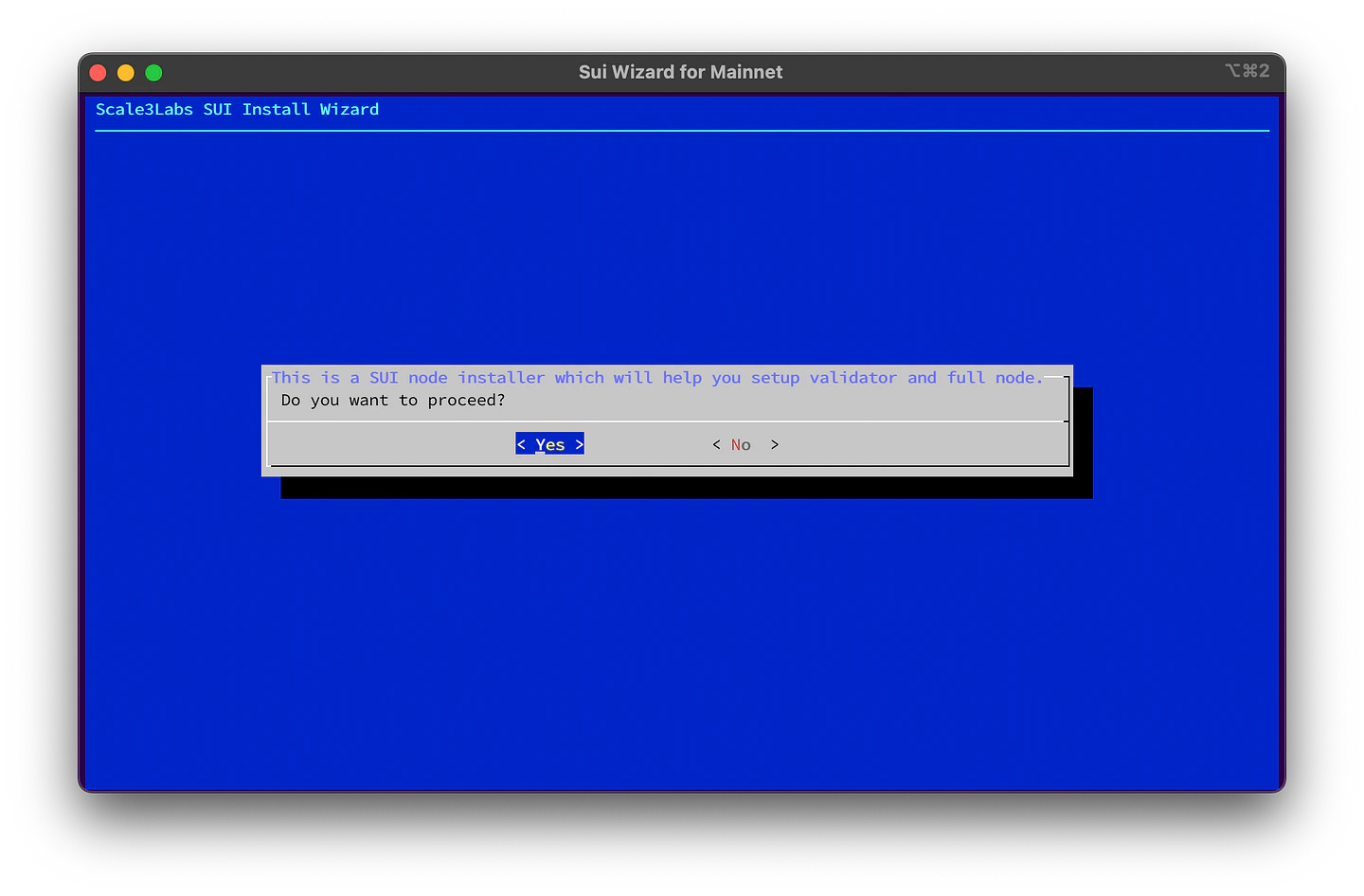
* Once you are on the welcome screen, follow the screenshots below for the steps.
Press `Yes`
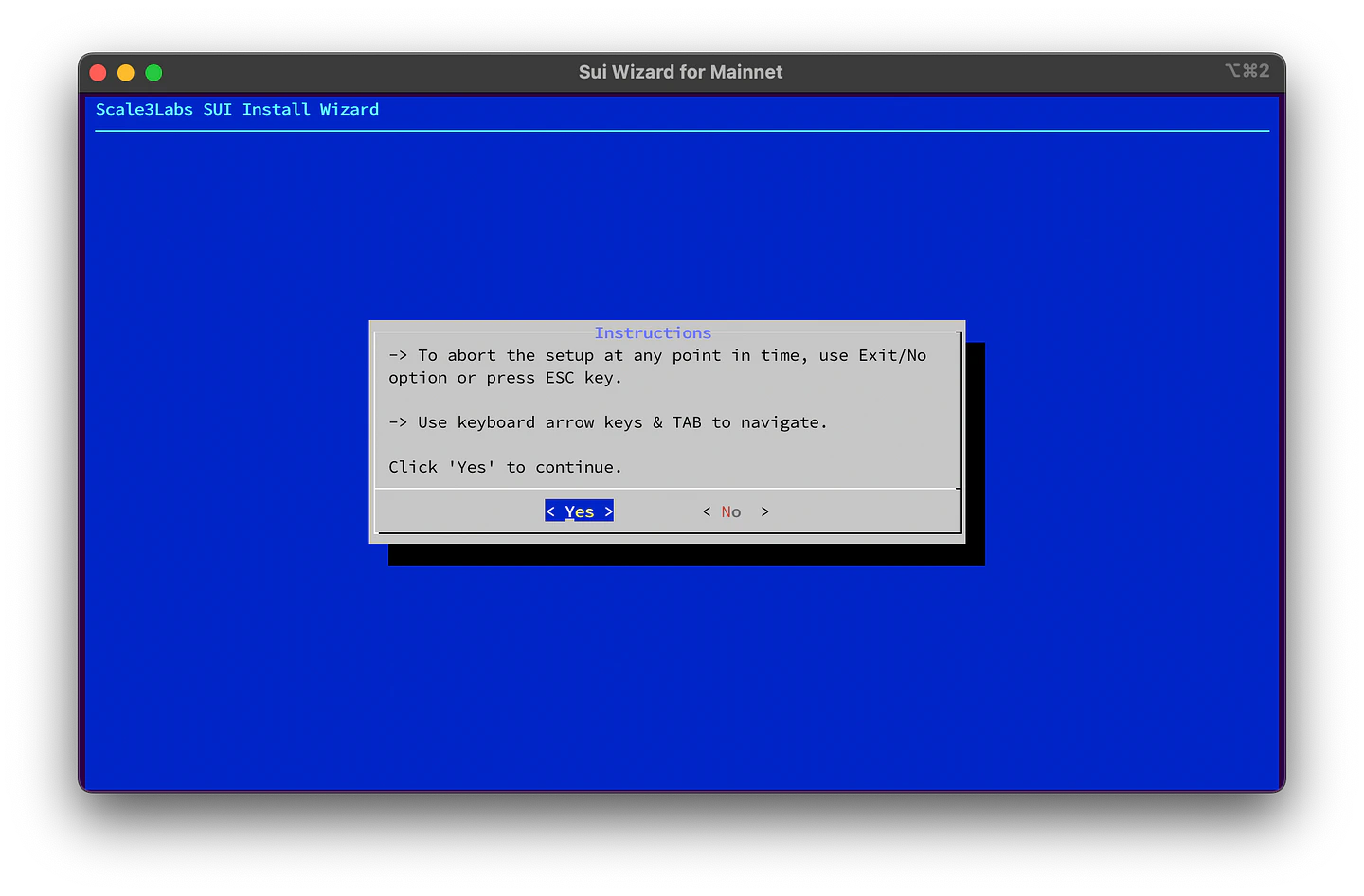
 * Read the instructions and press `Yes` to continue.
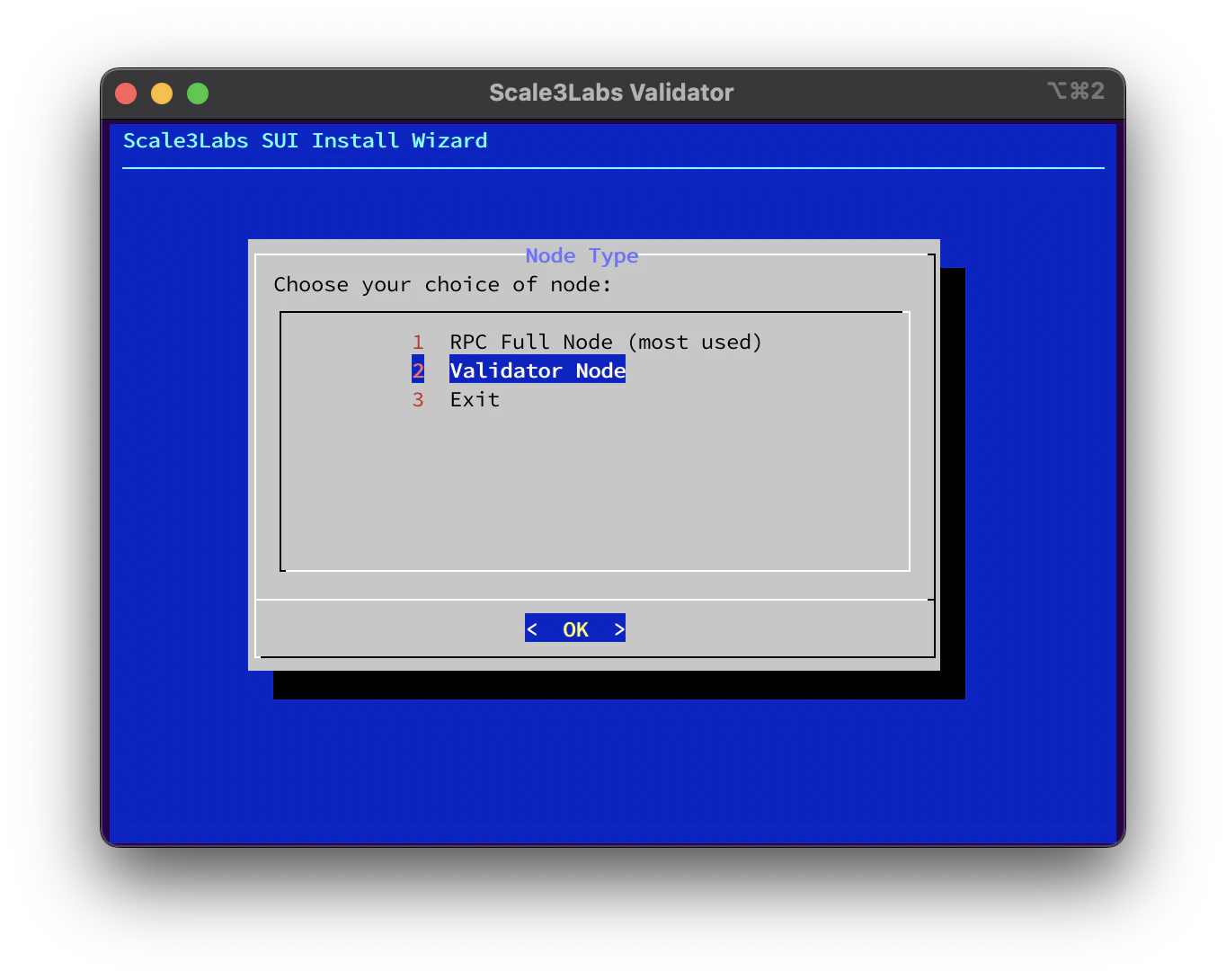
 * Since we are setting up a Validator, we will select the **Validator Node** option.
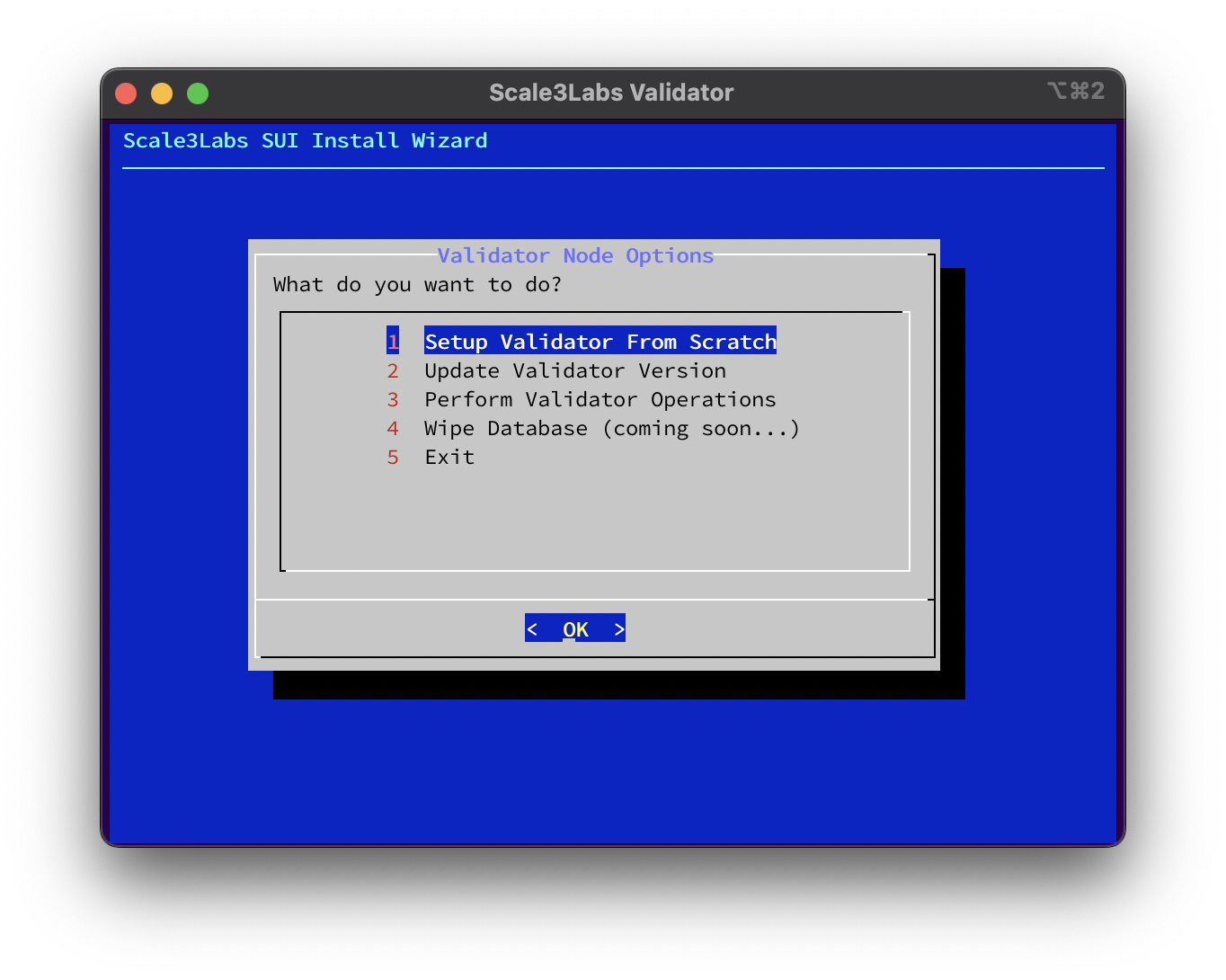
 * Select **Setup Validator From Scratch**
 * For the next screen, you are asked to choose Sui network, we will choose **Mainnet**.
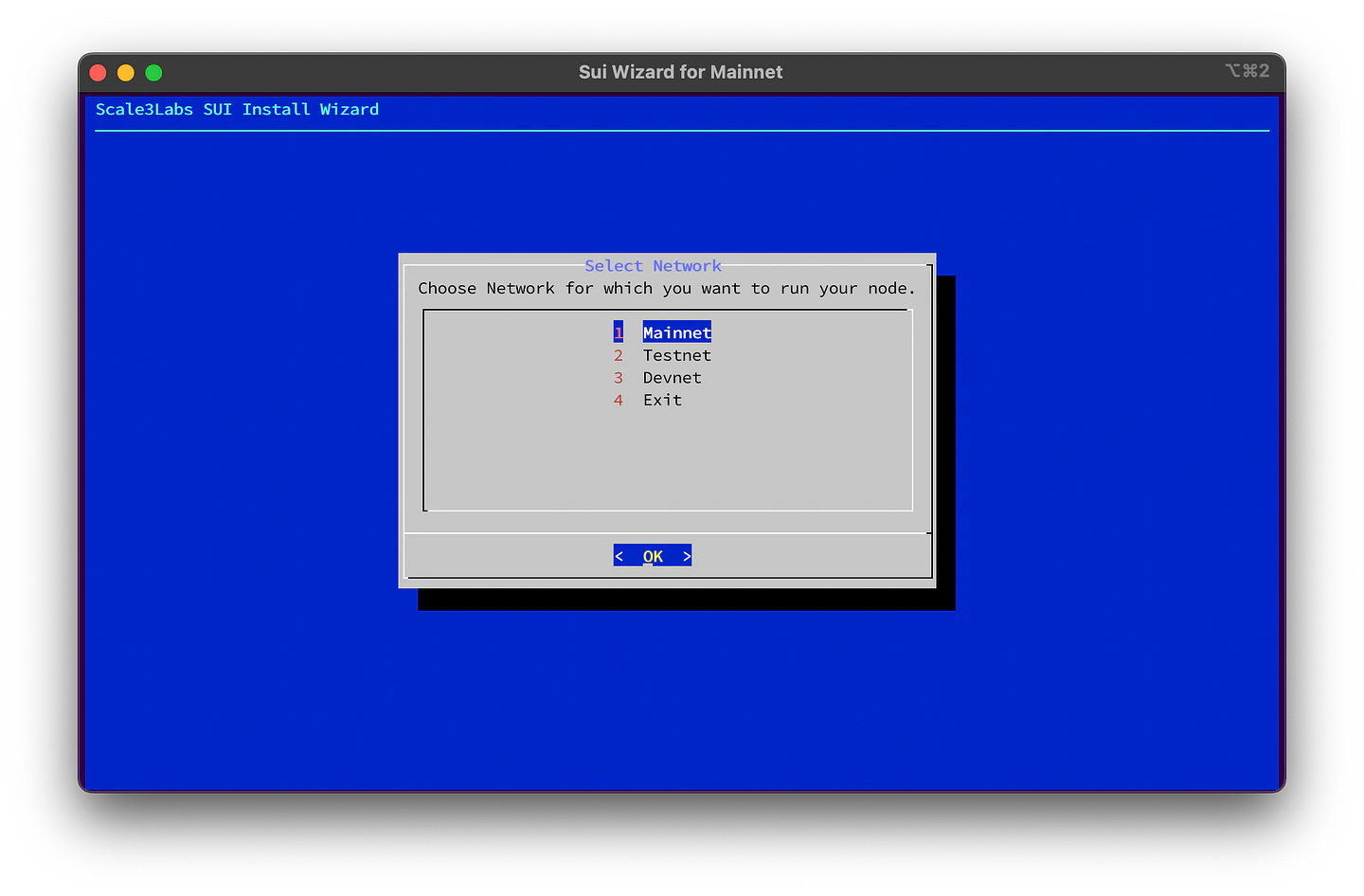 * On the next page there are two fields, you can keep it default.
1. Release Version or hash
This is the `sui-node` version that has to be installed. The values can be either:
* **Github release**: sui-v1.0.0, testnet-1.0.0
* **Branch**: mainnet, testnet, or devnet
* **Commit Hash**: ae1212baf8f0837e25926d941db3d26a61c1bea2, c525ba6489261ff6db65e87bf9a3fdda0a6c7be3
> Avoid using commit hash as much as possible, using **Github Release is the easiest and recommended option**.
2. Absolute folder for configs
Path to the folder where you want to store all your Sui node configs. Configs include `validator.yaml`, binaries, etc.
Make sure to remember this path for updating your node in future.
* On the next page there are two fields, you can keep it default.
1. Release Version or hash
This is the `sui-node` version that has to be installed. The values can be either:
* **Github release**: sui-v1.0.0, testnet-1.0.0
* **Branch**: mainnet, testnet, or devnet
* **Commit Hash**: ae1212baf8f0837e25926d941db3d26a61c1bea2, c525ba6489261ff6db65e87bf9a3fdda0a6c7be3
> Avoid using commit hash as much as possible, using **Github Release is the easiest and recommended option**.
2. Absolute folder for configs
Path to the folder where you want to store all your Sui node configs. Configs include `validator.yaml`, binaries, etc.
Make sure to remember this path for updating your node in future.
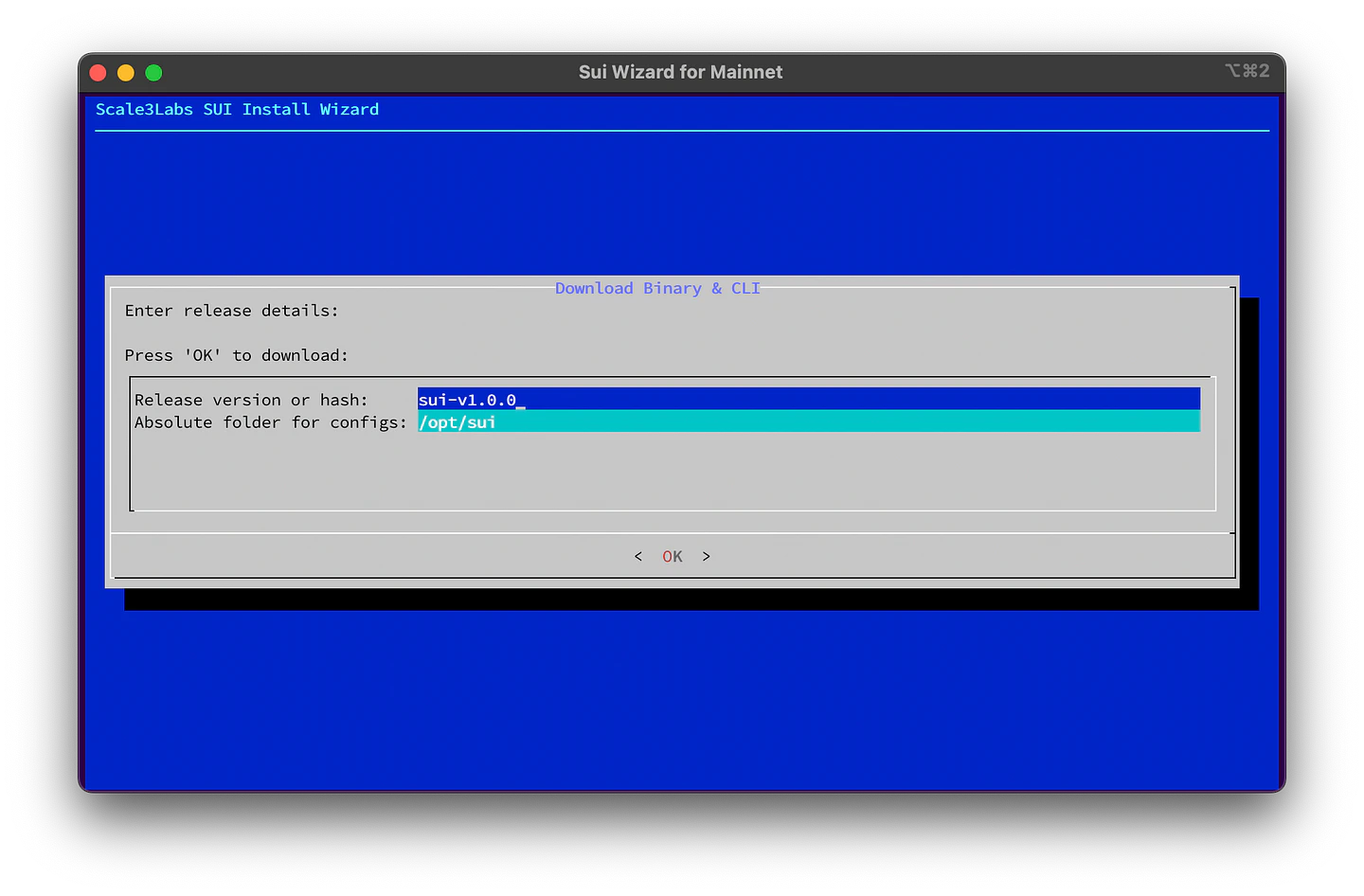 After pressing `OK` or hitting enter/return, the download of the Sui binary will start, and once it's successfully downloaded, the binary version will be displayed.
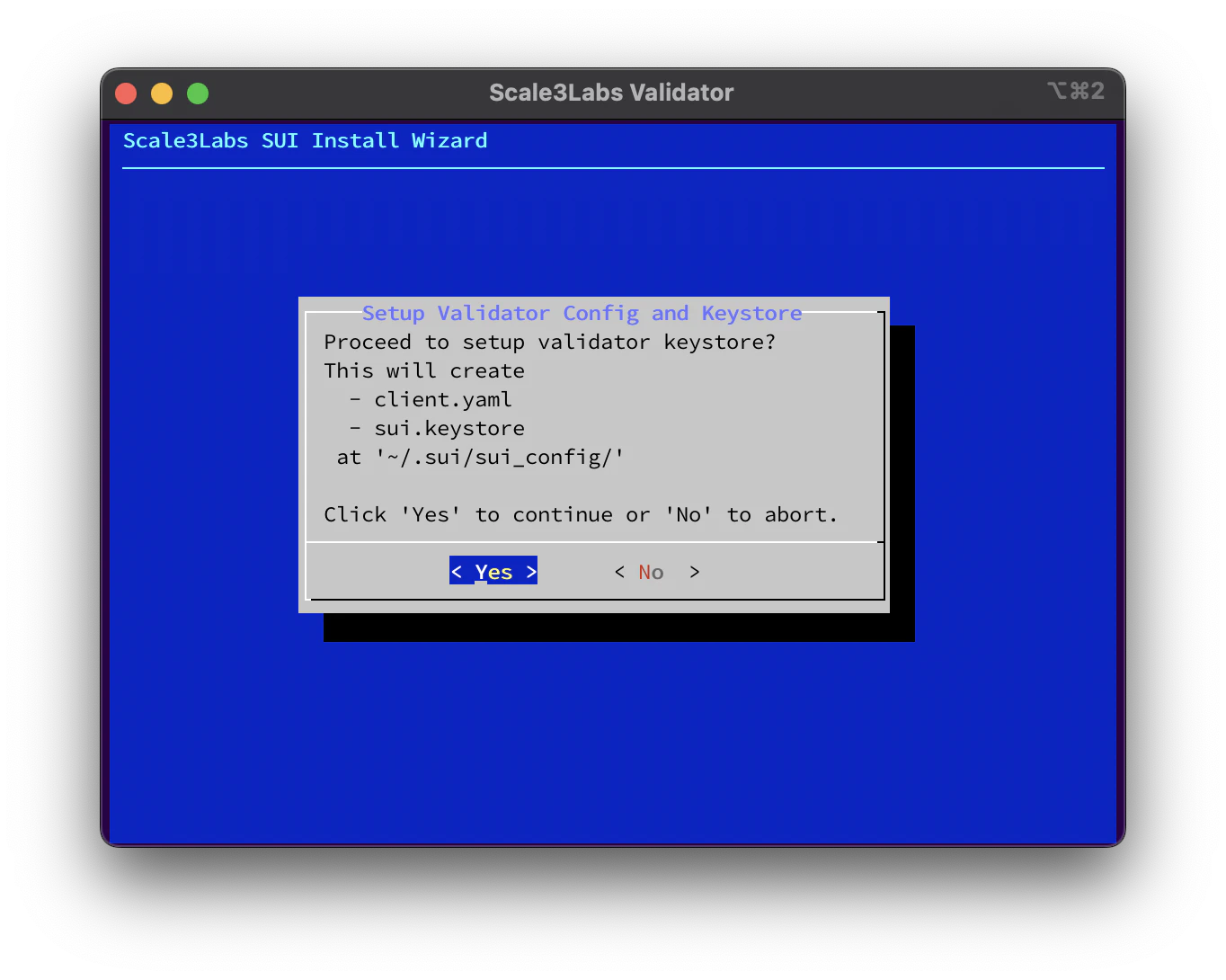
* Next step is to setup validator config and keystore. This basically creates `client.yaml` file which will be used by Sui validator tool aka sui client to interact with Sui network.
After pressing `OK` or hitting enter/return, the download of the Sui binary will start, and once it's successfully downloaded, the binary version will be displayed.
* Next step is to setup validator config and keystore. This basically creates `client.yaml` file which will be used by Sui validator tool aka sui client to interact with Sui network.
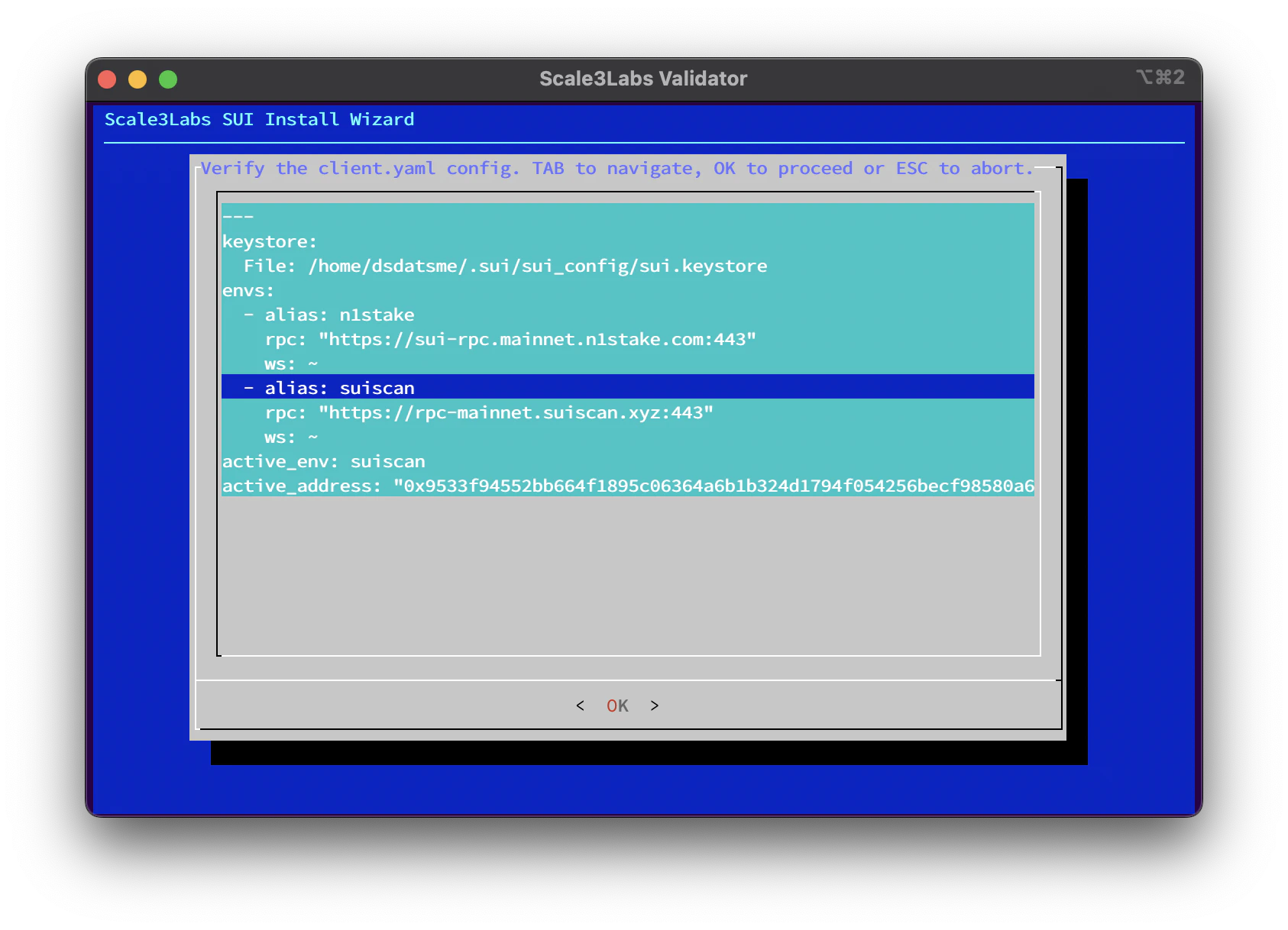
 Once the client file is created, you will have an option to view and edit the file. **If you do not have any idea, just keep it default**.
Press `tab` key to switch between edit text box and `OK` button.
Once the client file is created, you will have an option to view and edit the file. **If you do not have any idea, just keep it default**.
Press `tab` key to switch between edit text box and `OK` button.
 * Take the note of `Wallet Recovery Phrase` for backup purposes. You can either take a screenshot or take a picture from your mobile.
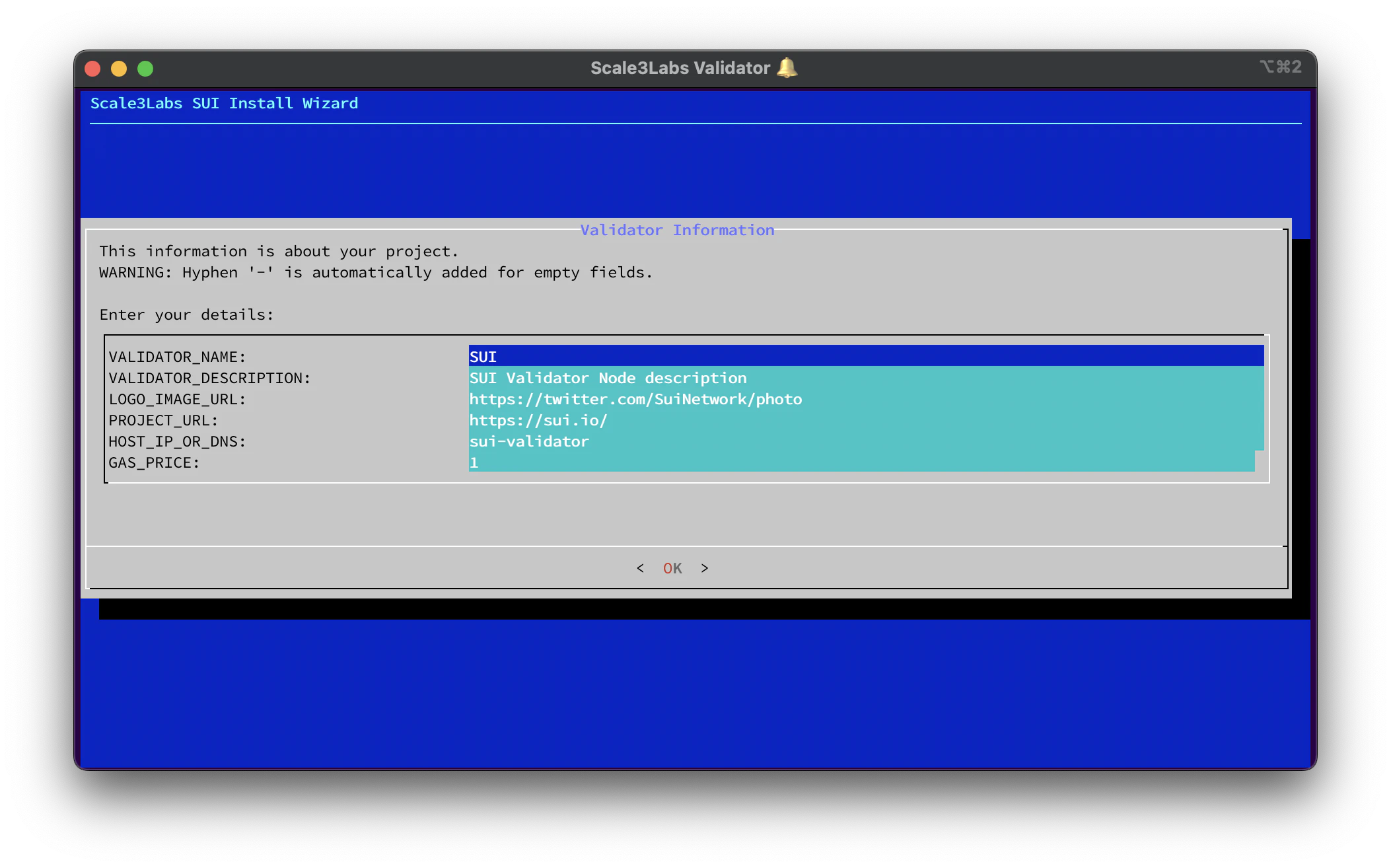
* This is the step where you provide your validator info (metadata) to the Sui network. This details are shown on Sui explorer dashboards.
1. Validator Name: This is your company/org or project name
2. Description: Here you can provide more details on what your company does.
3. Logo URL: Public URL for your company logo.
4. Project URL: Company website URL.
5. Host/IP: DNS name for Validator, or else Public IP of the Validator.
6. Gas Price: Integer value of the gas price in MIST. To check the current gas price refer Sui explorer: [https://suiexplorer.com/](https://suiexplorer.com/)
* Take the note of `Wallet Recovery Phrase` for backup purposes. You can either take a screenshot or take a picture from your mobile.
* This is the step where you provide your validator info (metadata) to the Sui network. This details are shown on Sui explorer dashboards.
1. Validator Name: This is your company/org or project name
2. Description: Here you can provide more details on what your company does.
3. Logo URL: Public URL for your company logo.
4. Project URL: Company website URL.
5. Host/IP: DNS name for Validator, or else Public IP of the Validator.
6. Gas Price: Integer value of the gas price in MIST. To check the current gas price refer Sui explorer: [https://suiexplorer.com/](https://suiexplorer.com/)
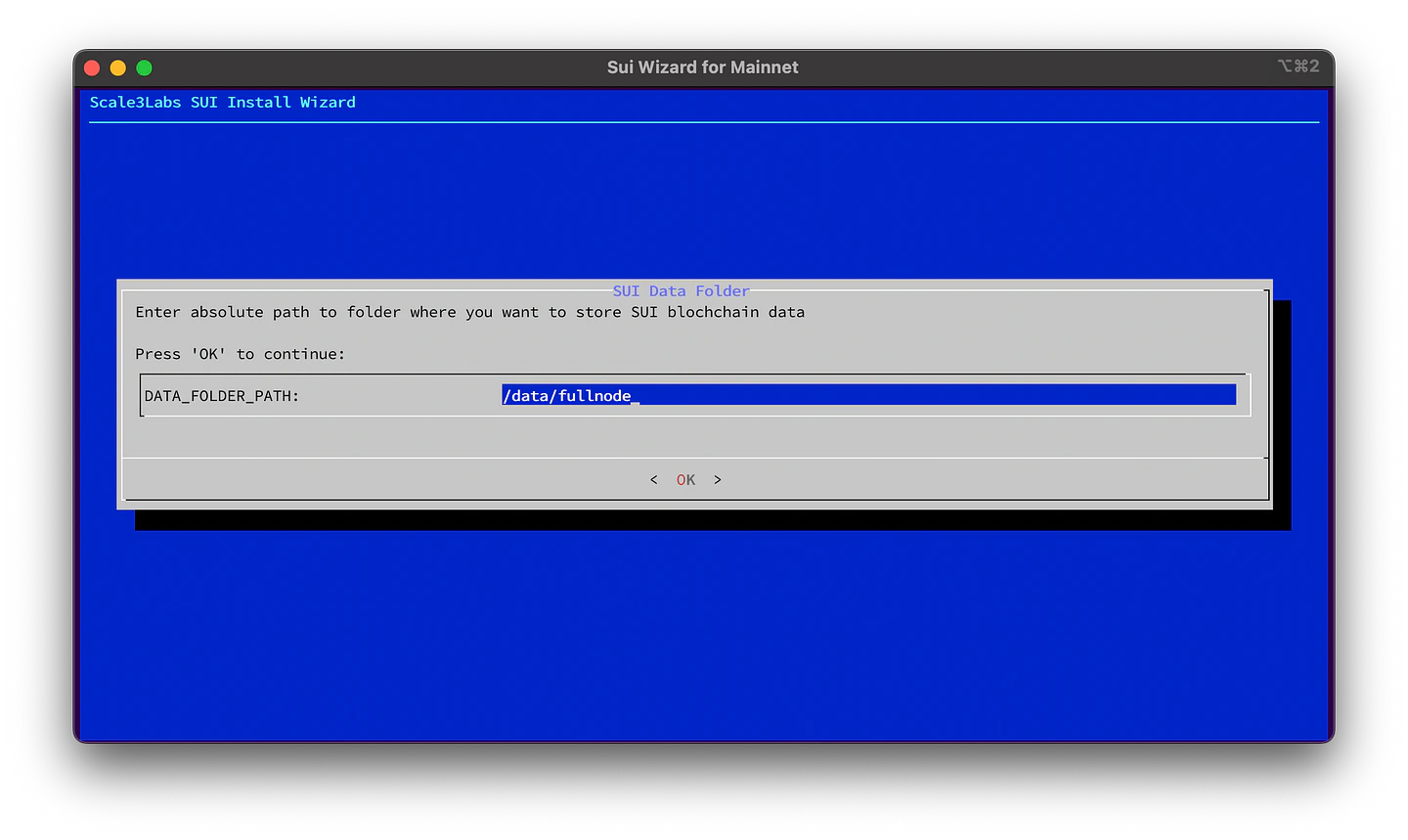
 * Proceed to setting up Sui systemd service. You will now be asked to enter a path for storing data. If you're unsure about the appropriate value, it's recommended to keep the default setting.
*The folder path should be directed to a disk with ample free space for
storing the Sui Blockchain data.*
* Proceed to setting up Sui systemd service. You will now be asked to enter a path for storing data. If you're unsure about the appropriate value, it's recommended to keep the default setting.
*The folder path should be directed to a disk with ample free space for
storing the Sui Blockchain data.*
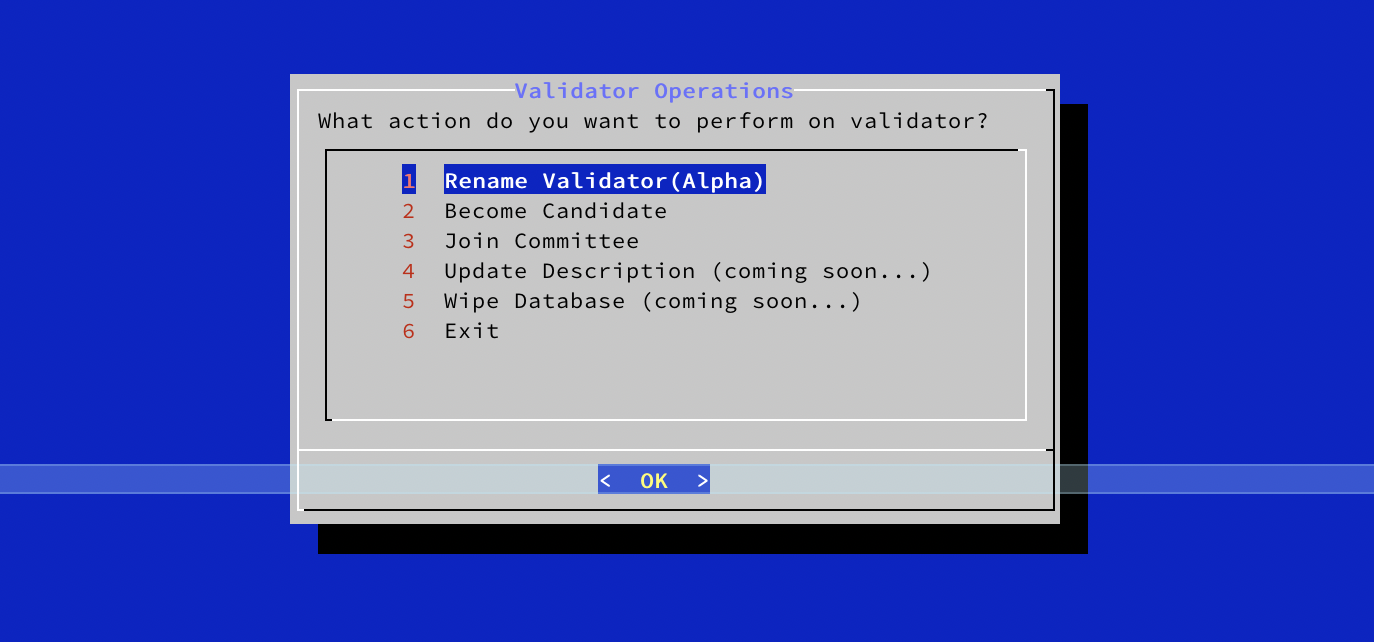
 * Once the service setup is completed, to become the validator, at first you need to sign up as validator candidate, by selecting `Perform Validator Operations`.
When requested, insert the Sui path that you added in "Absolute folder for
configs" field during setup.
* Your next step is to get enough Sui tokens on the validator address.
* After validator address becomes a validator candidate and you have enough Sui tokens staked, you can make a request to network to become validator by selecting `Perform Validator Operations`.
When requested, insert the Sui path that you added in "Absolute folder for
configs" field during setup.
* Once the service setup is completed, to become the validator, at first you need to sign up as validator candidate, by selecting `Perform Validator Operations`.
When requested, insert the Sui path that you added in "Absolute folder for
configs" field during setup.
* Your next step is to get enough Sui tokens on the validator address.
* After validator address becomes a validator candidate and you have enough Sui tokens staked, you can make a request to network to become validator by selecting `Perform Validator Operations`.
When requested, insert the Sui path that you added in "Absolute folder for
configs" field during setup.
 * Any time you can start/stop/restart your validator process using the following command
```bash theme={null}
systemctl start sui-node
systemctl stop sui-node
systemctl restart sui-node
```
* Once you start/restart your sui-node service, you can check the logs by running the following command:
```bash theme={null}
journalctl -fu sui-node
```
## Reference
Official Steps to run validator: [https://github.com/MystenLabs/sui/blob/main/nre/sui\_for\_node\_operators.md](https://github.com/MystenLabs/sui/blob/main/nre/sui_for_node_operators.md)
* Any time you can start/stop/restart your validator process using the following command
```bash theme={null}
systemctl start sui-node
systemctl stop sui-node
systemctl restart sui-node
```
* Once you start/restart your sui-node service, you can check the logs by running the following command:
```bash theme={null}
journalctl -fu sui-node
```
## Reference
Official Steps to run validator: [https://github.com/MystenLabs/sui/blob/main/nre/sui\_for\_node\_operators.md](https://github.com/MystenLabs/sui/blob/main/nre/sui_for_node_operators.md)