> ## Documentation Index
> Fetch the complete documentation index at: https://docs.scale3labs.com/llms.txt
> Use this file to discover all available pages before exploring further.
# Running A Sui FullNode
> Steps to setup a Sui fullnode on devnet/testnet
[Sui Wizard](https://github.com/Scale3-Labs/sui-node-helper) makes life easy for setting up a fullnode for `mainnet`, `testnet` or `devnet`.
You can follow the doc or check out the medium [blog](https://medium.com/@scale3/sui-wizard-node-management-simplified-b6a7395745e5).
## System Requirements
As per the [Sui documentation](https://docs.sui.io/build/fullnode#hardware-requirements), the recommended minimum hardware requirements are as follows:
* CPUs: 8 physical cores / 16 vCPUs
* RAM: 128 GB
* Storage (SSD): 2 TB NVMe drive
## Steps to Setup a Fullnode
In this walkthough we are going to setup a fullnode for `Mainnet`, but the
steps remain same for other Sui networks.
### Step 1: Connect to the Server
To connect to your server, use SSH or RDP to access the server terminal, allowing you to run commands directly.
### Step 2: Download and Run Sui Wizard
* Download the script
```bash theme={null}
curl --fail --location --output helper.sh https://raw.githubusercontent.com/Scale3-Labs/sui-node-helper/master/helper.sh
```
* Give executable permissions
```bash theme={null}
chmod +x helper.sh
```
* Run the script
*If the script prompts to install dependencies, type 'y' to install them.*
```bash theme={null}
./helper.sh
```
### Step 3: Configure the server for running Sui Mainnet Fullnode
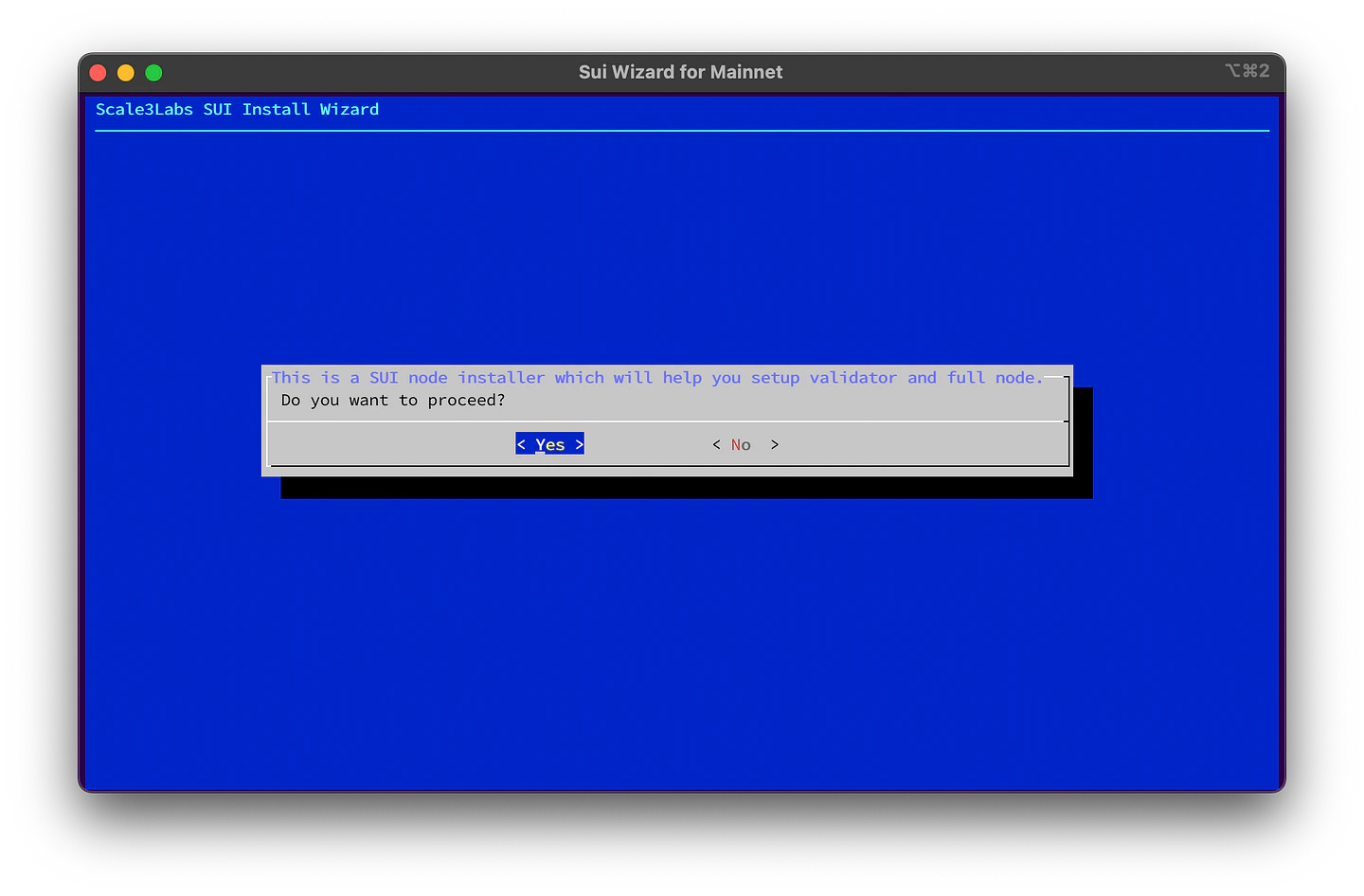
* Once you are on the welcome screen, follow the screenshots below for the steps.
Press `Yes`
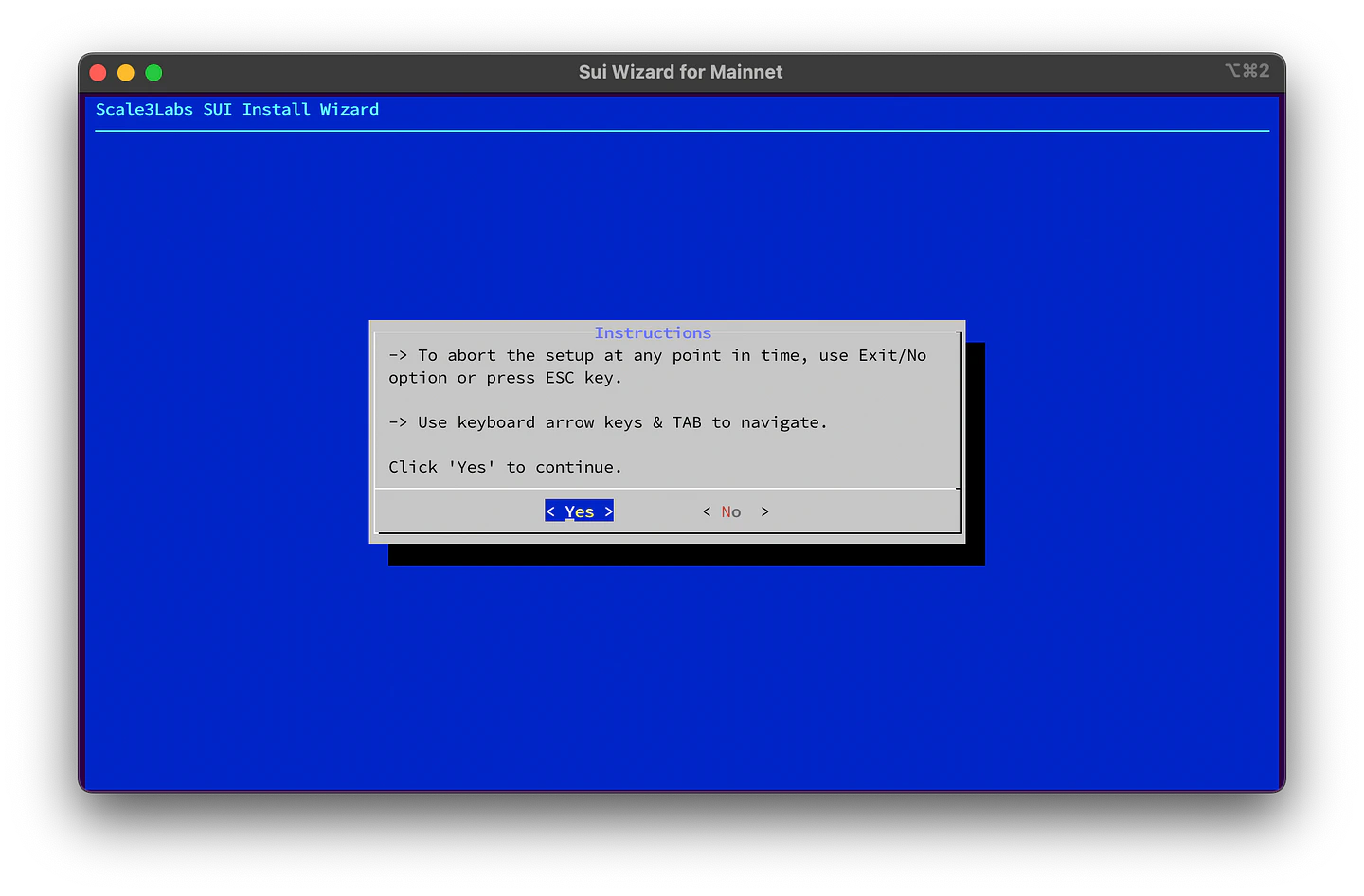
 * Read the instructions and press `Yes` to continue.
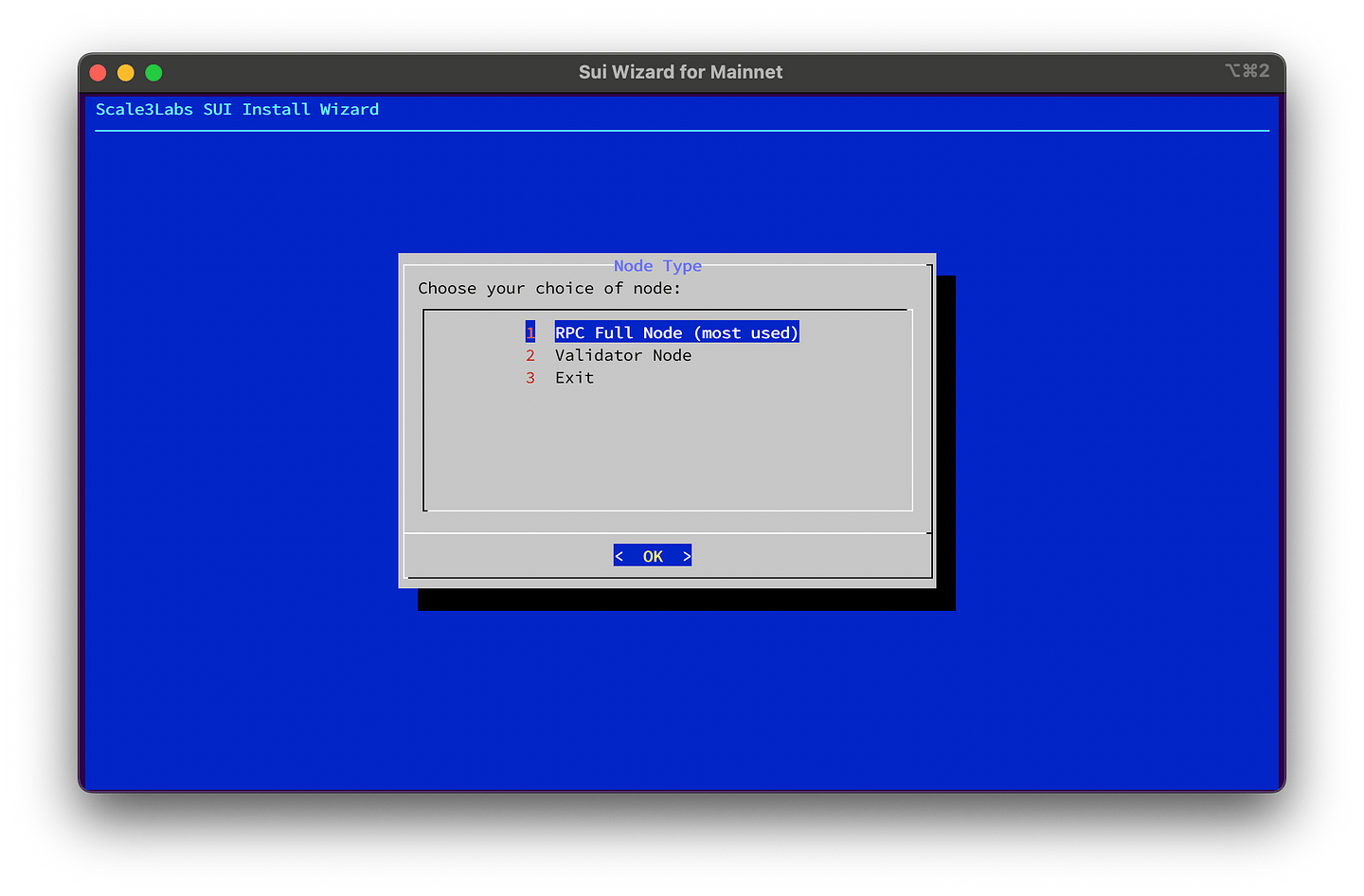
 * Since we are setting up a Fullnode, we will select the **RPC Full Node** option.
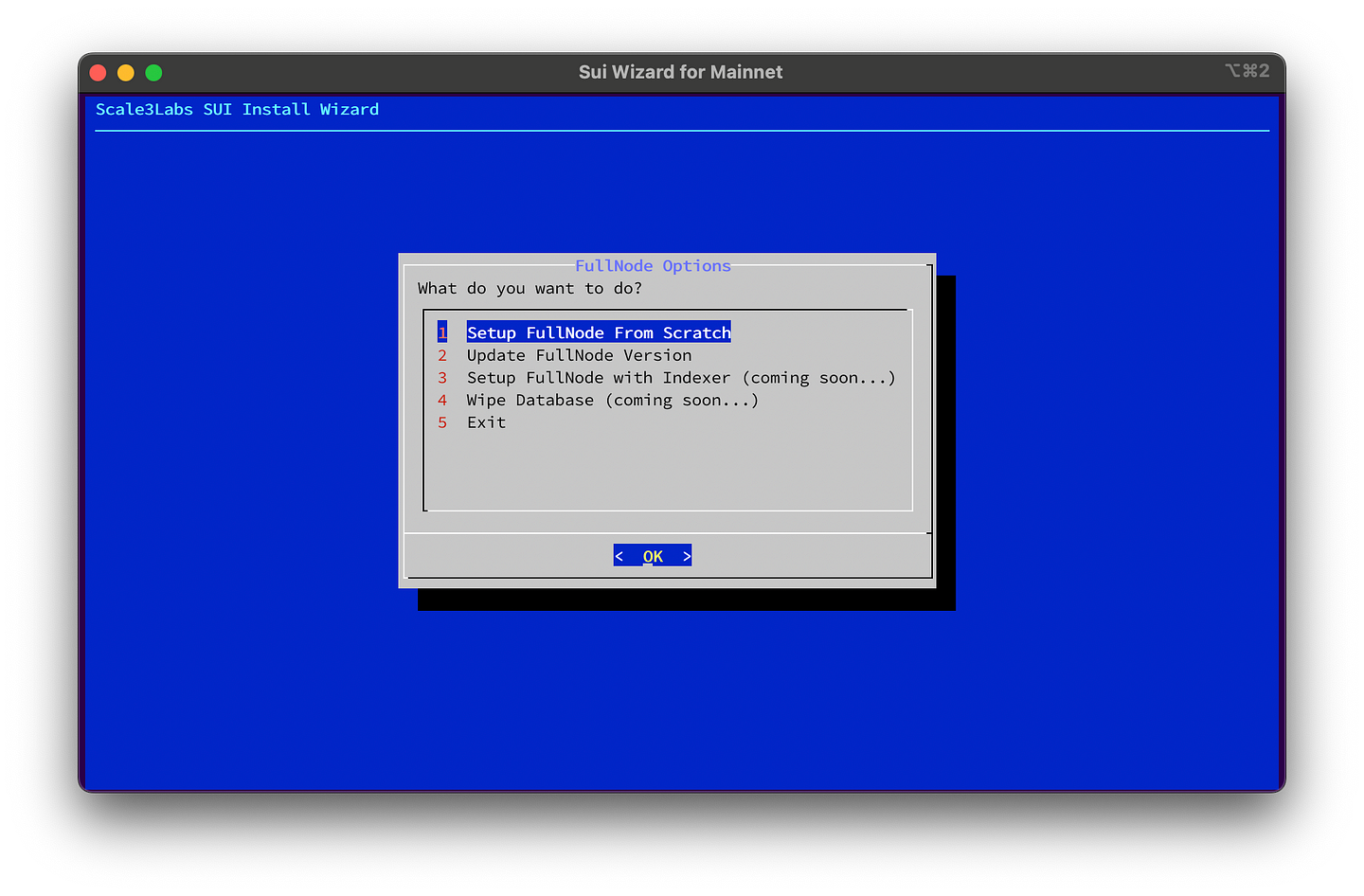
 * Select **Setup Fullnode From Scratch**
 * For the next screen, you are asked to choose Sui network, we will choose **Mainnet**.
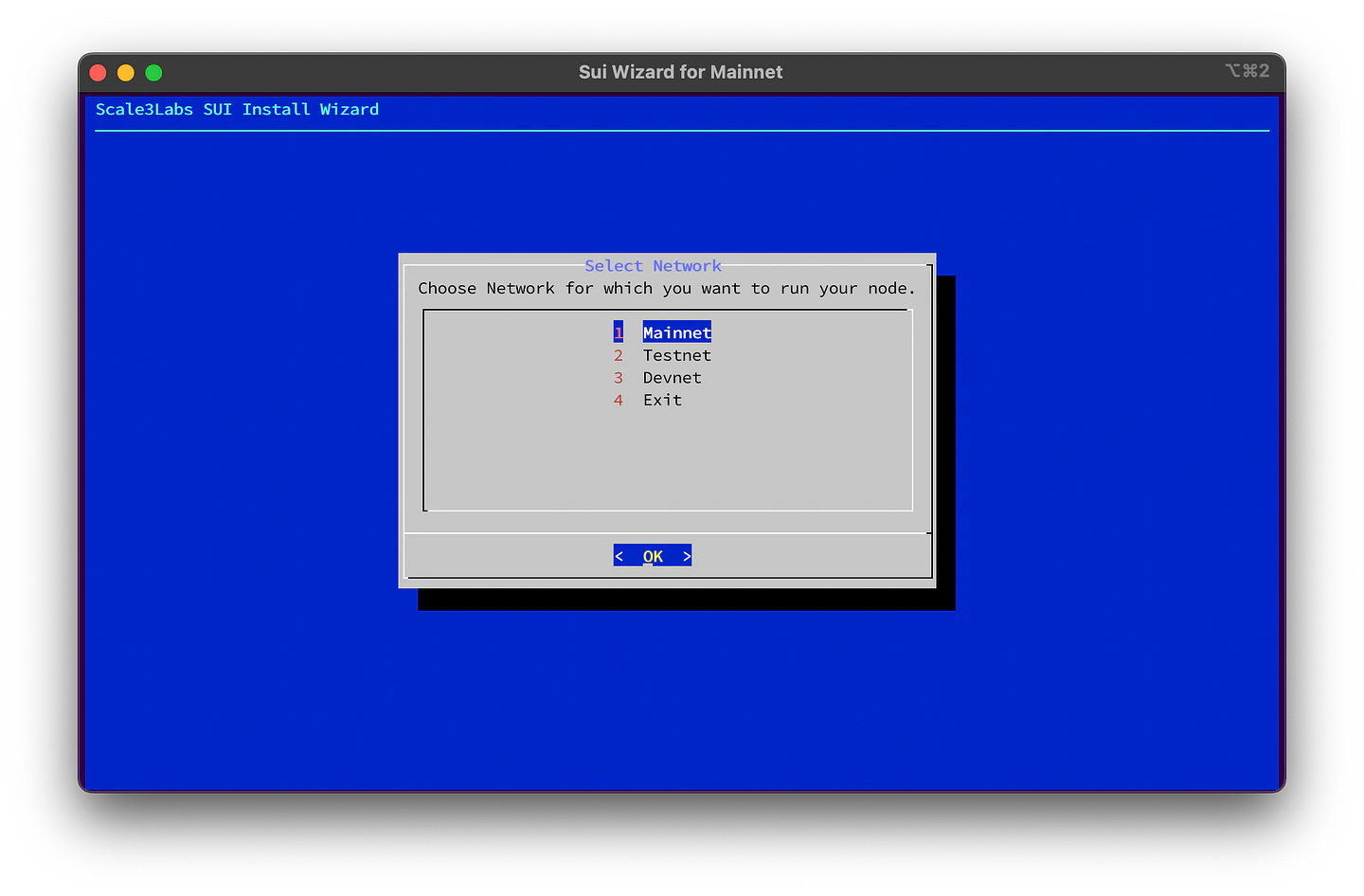 * On the next page there are two fields, you can keep it default.
1. Release Version or hash
This is the `sui-node` version that has to be installed. The values can be either:
* **Github release**: sui-v1.0.0, testnet-1.0.0
* **Branch**: mainnet, testnet, or devnet
* **Commit Hash**: ae1212baf8f0837e25926d941db3d26a61c1bea2, c525ba6489261ff6db65e87bf9a3fdda0a6c7be3
> Avoid using commit hash as much as possible, using **Github Release is the easiest and recommended option**.
2. Absolute folder for configs
Path to the folder where you want to store all your Sui node configs. Configs include `fullnode.yaml`, binaries, etc.
Make sure to remember this path for updating your node in future.
* On the next page there are two fields, you can keep it default.
1. Release Version or hash
This is the `sui-node` version that has to be installed. The values can be either:
* **Github release**: sui-v1.0.0, testnet-1.0.0
* **Branch**: mainnet, testnet, or devnet
* **Commit Hash**: ae1212baf8f0837e25926d941db3d26a61c1bea2, c525ba6489261ff6db65e87bf9a3fdda0a6c7be3
> Avoid using commit hash as much as possible, using **Github Release is the easiest and recommended option**.
2. Absolute folder for configs
Path to the folder where you want to store all your Sui node configs. Configs include `fullnode.yaml`, binaries, etc.
Make sure to remember this path for updating your node in future.
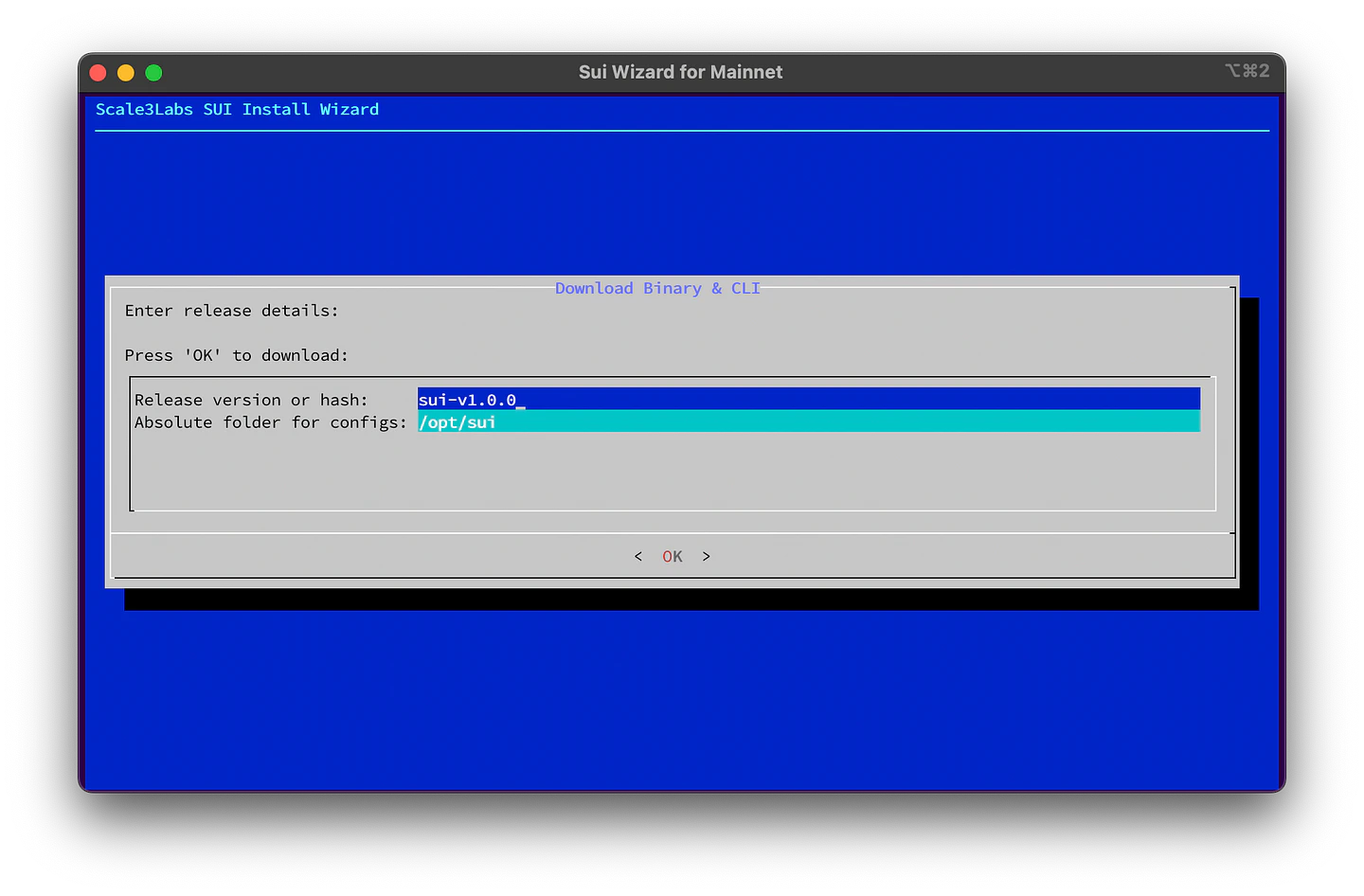 After pressing `OK` or hitting enter/return, the download of the Sui binary will start, and once it's successfully downloaded, the binary version will be displayed.
Press OK to proceed to setup "systemd" service.
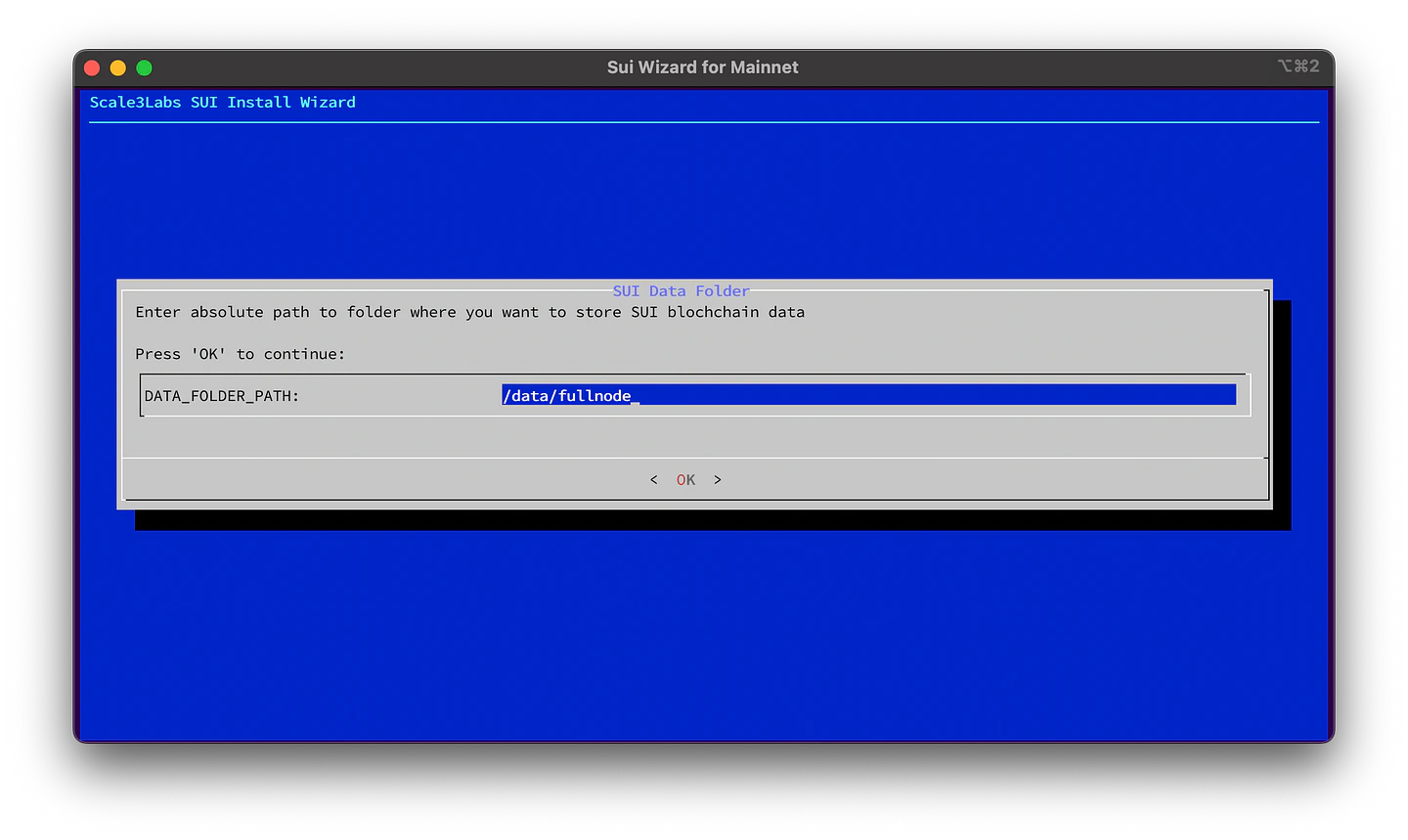
* You will now be asked to enter a path for storing data. If you're unsure about the appropriate value, it's recommended to keep the default setting.
*The folder path should be directed to a disk with ample free space for
storing the Sui Blockchain data.*
After pressing `OK` or hitting enter/return, the download of the Sui binary will start, and once it's successfully downloaded, the binary version will be displayed.
Press OK to proceed to setup "systemd" service.
* You will now be asked to enter a path for storing data. If you're unsure about the appropriate value, it's recommended to keep the default setting.
*The folder path should be directed to a disk with ample free space for
storing the Sui Blockchain data.*
 * The last step is to start the Sui fullnode process, press `Yes` if you wish to start or `No` if you want to make some changes and manually start.
 * Once you start/restart your sui-node service, you can check the logs by running the following command:
```bash theme={null}
journalctl -fu sui-node
```
* Once you start/restart your sui-node service, you can check the logs by running the following command:
```bash theme={null}
journalctl -fu sui-node
```