> ## Documentation Index
> Fetch the complete documentation index at: https://docs.scale3labs.com/llms.txt
> Use this file to discover all available pages before exploring further.
# Validator alerts
1. Click on **Validators** from the top panel. Then click on Alerts Policies, then click on **Create Alert**
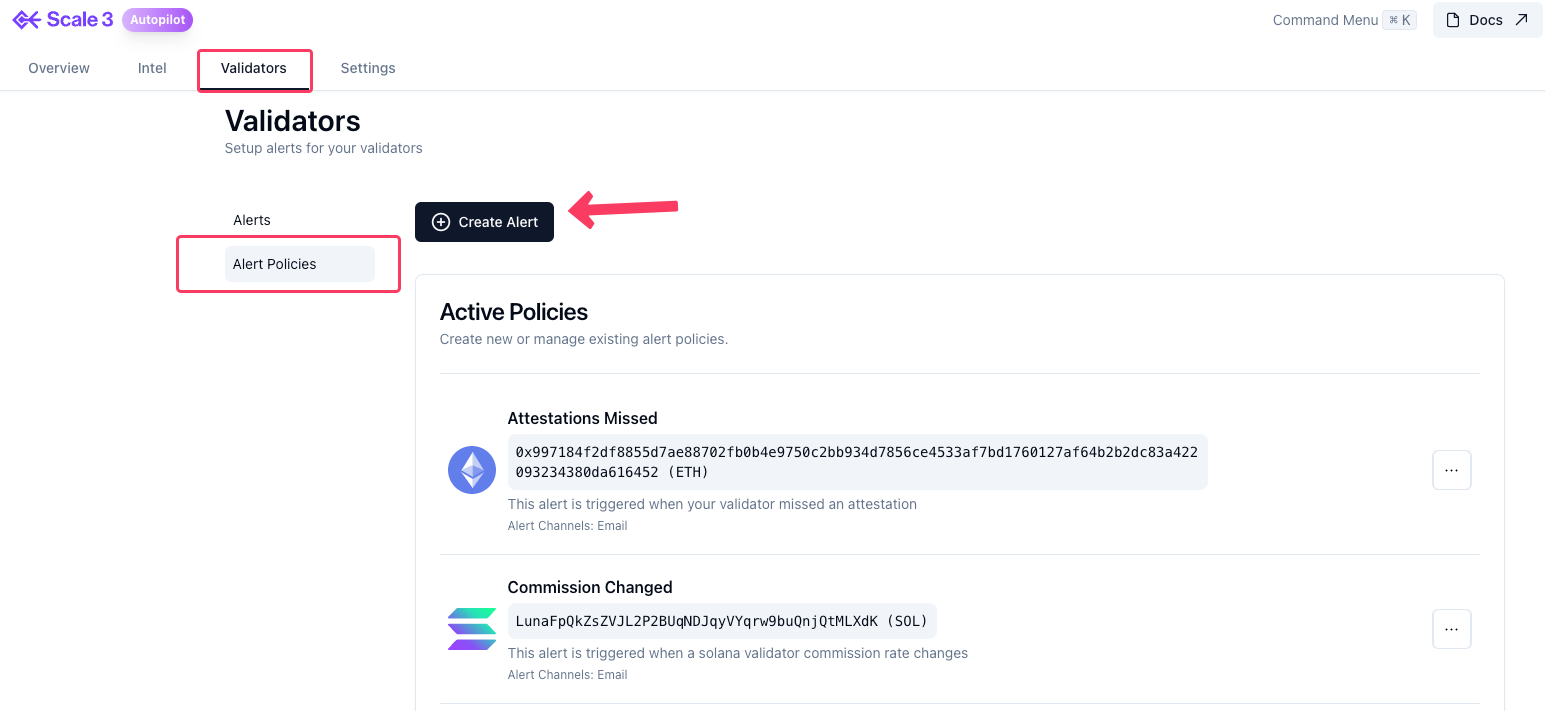 2. Select Protocol then enter validator public key
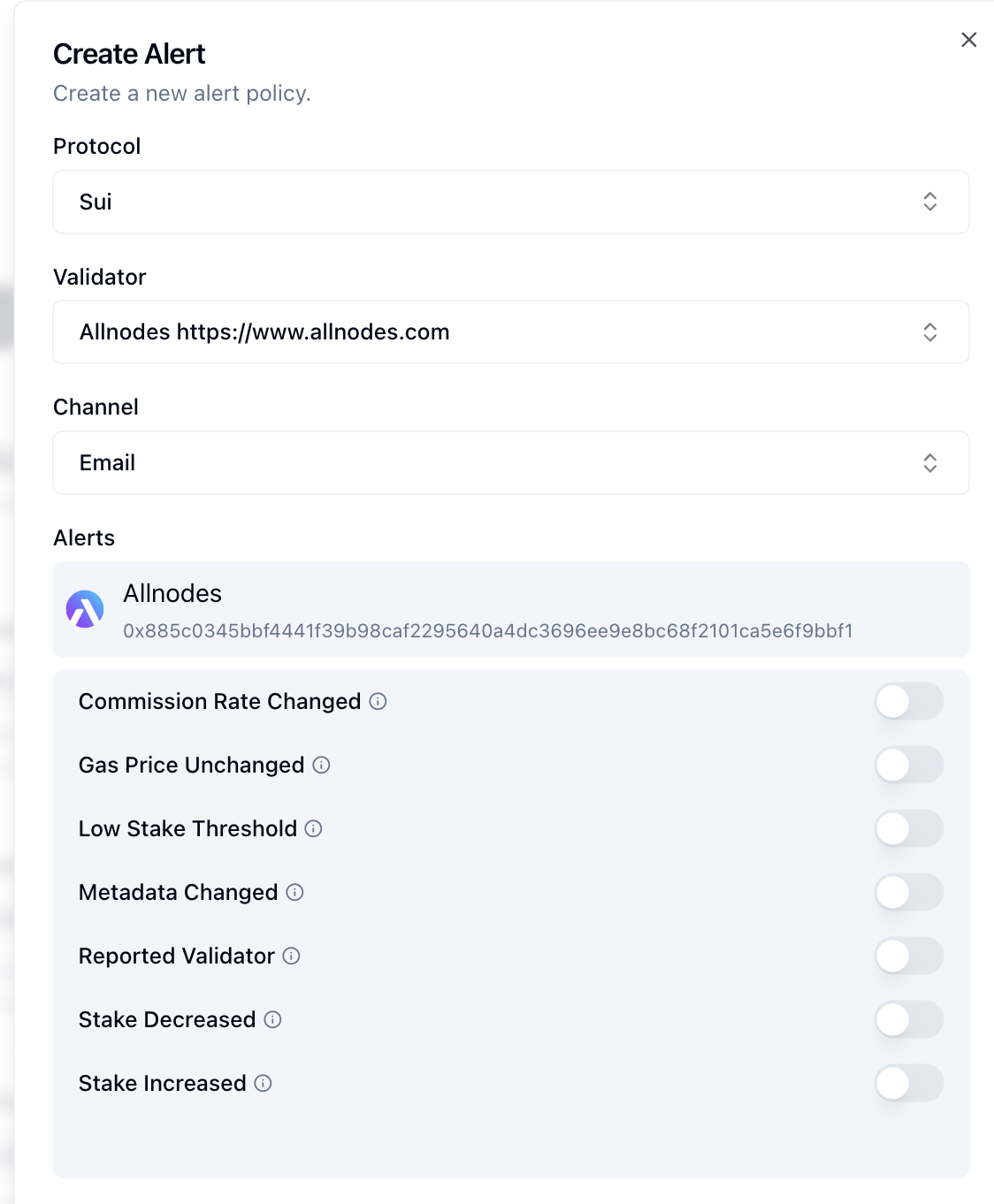 3. Add alert channels if not configured already. See [Alert Channels](/channels/introduction) section on how to manage alert channels. Once your channels are added successfully you will see **Channel** section.
4. Finally, select the alerts you want to subscribe to by clicking the circles on the right side.
3. Add alert channels if not configured already. See [Alert Channels](/channels/introduction) section on how to manage alert channels. Once your channels are added successfully you will see **Channel** section.
4. Finally, select the alerts you want to subscribe to by clicking the circles on the right side.
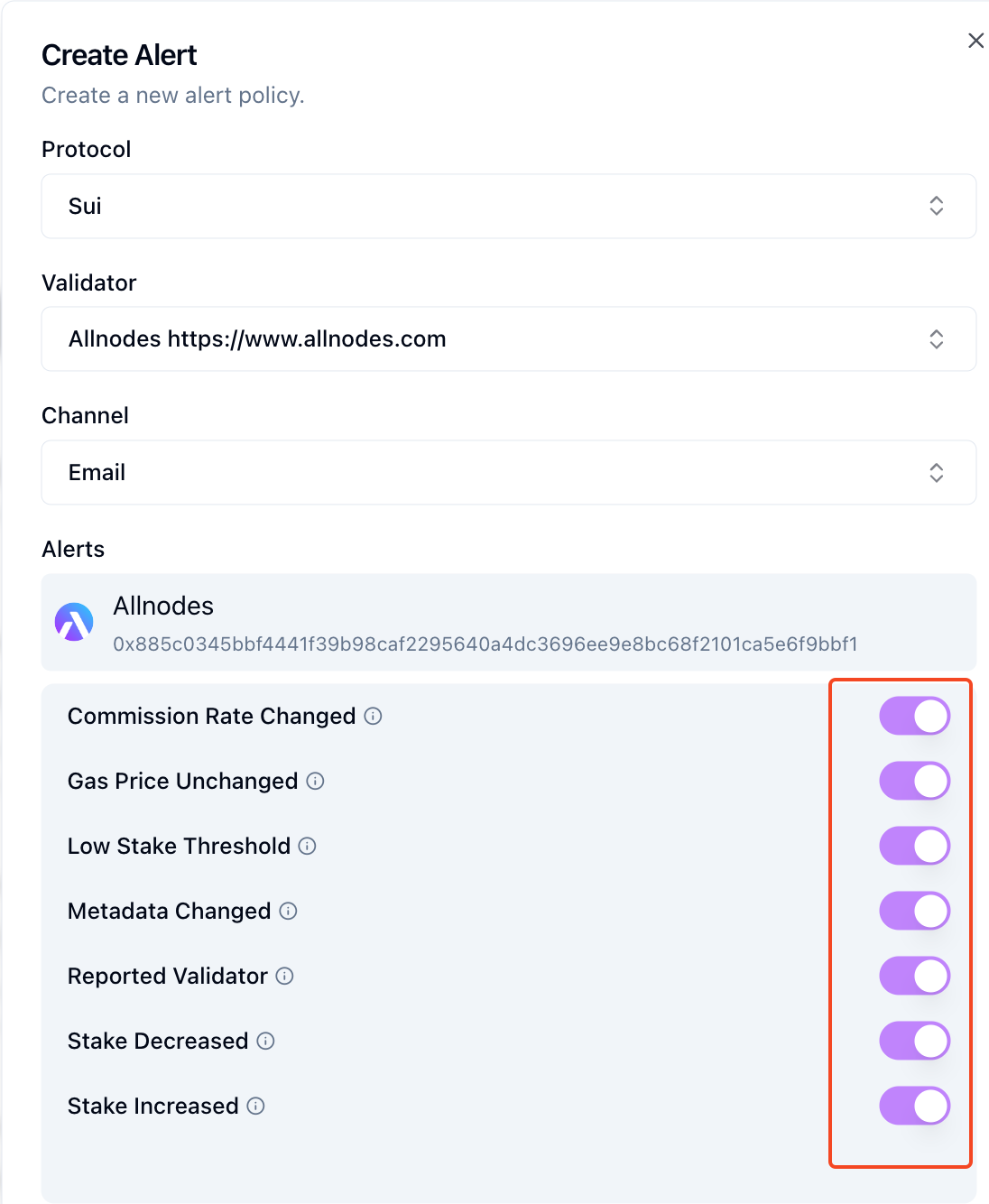 > **Note:** You will only be able to subscribe to channels that are connected otherwise the circle will be greyed out.